
6.3 Client Area Styling Settings
Controls how the module’s Client Area colours are mapped onto the active WHMCS template, so the module’s cards, tables, buttons, badges and alerts look like a native part of your template rather than a bolted-on panel.
- Lagom, Twenty-One, Six and Nexus ship with a complete colour mapping already applied. No configuration is needed; adjust an individual row only if you want to override it.
- Any other (custom) template opens on a Default tab instead, offering a fallback palette: Theme Mode (Light/Dark), Primary and Secondary colour, per-tone button colours and per-tone alert colours.
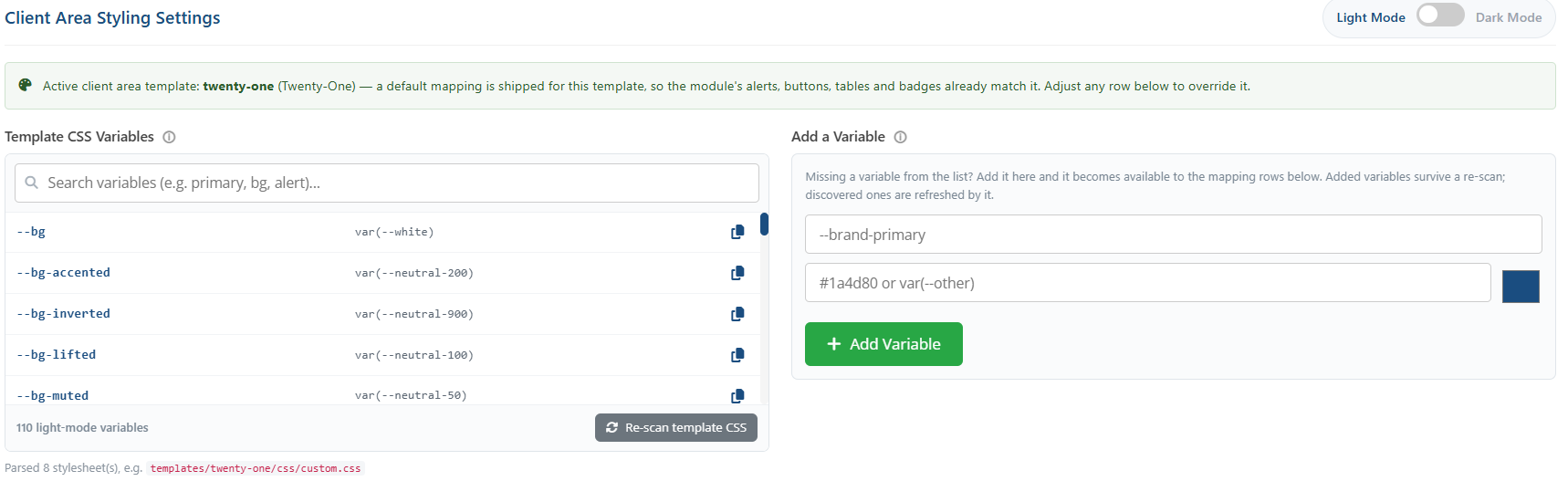
- The Light/Dark switch at the top right of the section decides which mode every control below edits. Both modes are rendered at once and swapped with a class, so switching never loses unsaved edits.
- Template CSS Variables lists every CSS custom property discovered in the active template’s own stylesheets. Copy one with its copy button and paste it into any mapping row.
- Variable Mapping has one row per styling variable the module exposes: paste the template variable it should follow, or pick a fixed colour. A fixed colour always wins.
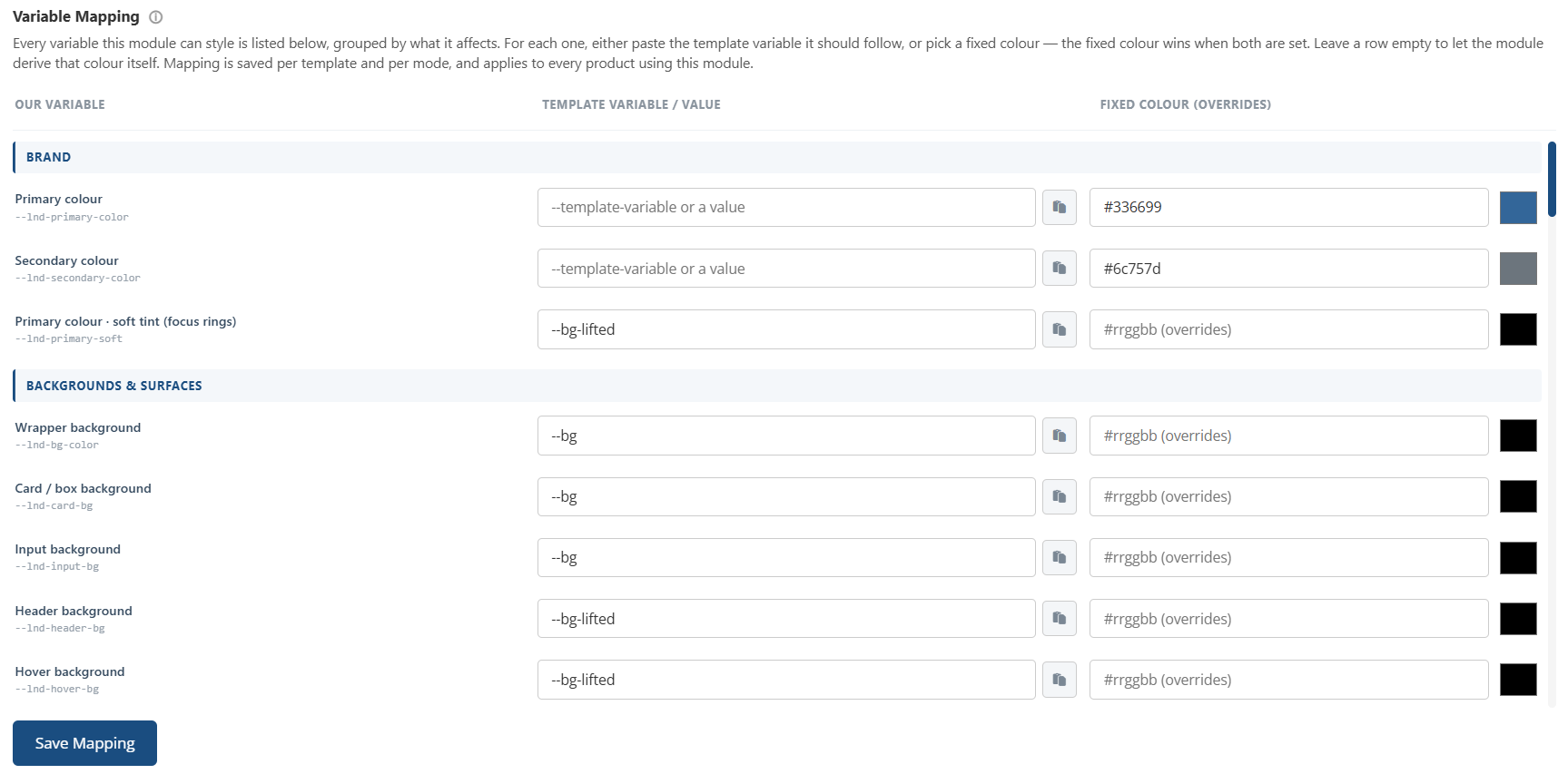
Note: Mapping is saved per template and per mode, and applies to every product using this module. The fallback palette on the Default tab is saved per product.
Tip: If your template has its own white/dark mode toggle, enable Does Your Client Area have a White/Dark Mode Toggle? on the Default tab and enter the CSS class name(s) it applies. The module then follows the customer’s chosen mode automatically.