
5. Server Configuration
Create a server connection so WHMCS can authenticate against the Linode API with your account token.
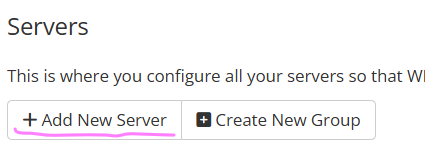
- Navigate to System Settings → Servers → Add New Server.
- Enter a server Name, then select Linode (Akamai Cloud) from the Type dropdown. When this type is selected, the module relabels the credential fields to match Linode’s terminology.
- Enter your Linode credentials in the relabeled fields:
|
Field (WHMCS) |
Relabeled To |
Description / Where to Obtain |
|---|---|---|
|
Access Hash |
Linode Personal Access Token |
The Linode API v4 Personal Access Token. Generate it in the Linode Cloud Manager — see Section 15.1. |
|
Username |
Username (not used) |
Not used by this module. Leave it empty. |
|
Password |
— |
Not used by this module. Leave it empty. |
|
Hostname / IP Address |
— |
Not used for API calls. You may leave it empty or enter api.linode.com for your own reference. |
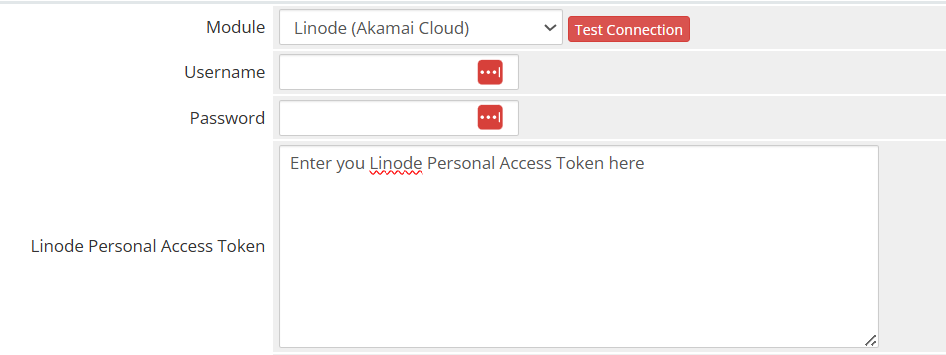
- Click Test Connection to verify the token. The module calls the Linode GET /account/settings endpoint and reports either success or the exact error Linode returned.

- Click Save Changes.
- [Optional] If you want to assign products by group, create a Server Group under System Settings → Servers → Create New Group, add this server to it, and save.
Note: WHMCS encrypts the Access Hash field in its database, and the module decrypts it on each use. The token is never written to the Module Log.