
7. Configurable Options
Configurable Options let the customer choose the plan, location, operating system or backup service at checkout, instead of always receiving the fixed values set on the product. When the customer selects an option, that choice overrides the product default for that order.
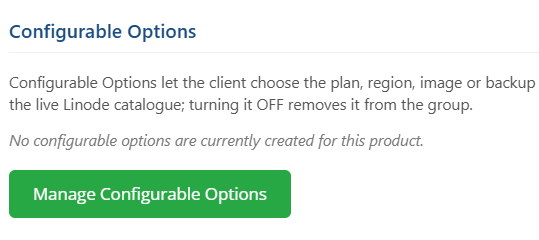
- On the product’s Module Settings dashboard, scroll to the Configurable Options section and click Manage Configurable Options.
- In the dialog, toggle on each option you want to generate, then click Save Changes. The module creates the product’s Configurable Option Group if it does not exist, creates the option, and fills its values live from the Linode catalogue with zero-cost pricing rows.
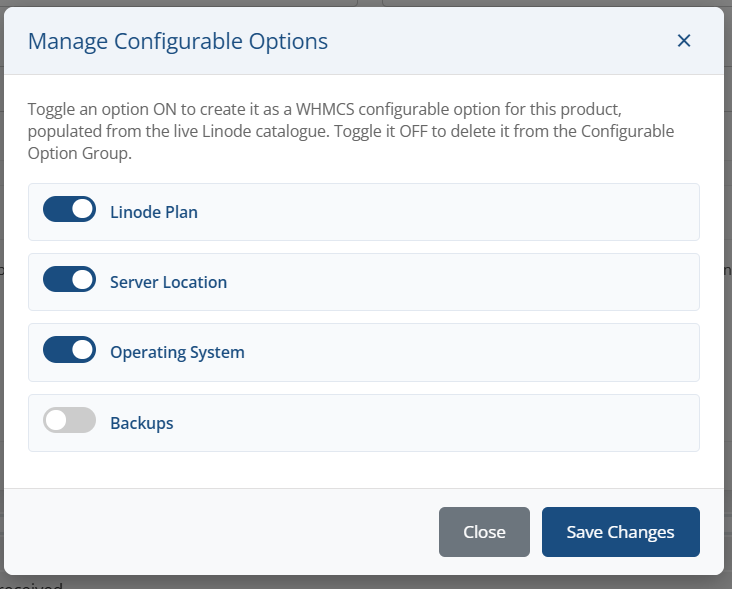
Available configurable options:
|
Option Key |
Displayed As |
What the customer selects |
Values come from |
|---|---|---|---|
|
server_plans |
Linode Plan |
The instance type, with disk, RAM, vCPU and monthly price shown. |
GET /linode/types |
|
server_locations |
Server Location |
The Linode region the instance is created in. |
GET /regions |
|
server_os |
Operating System |
The public distribution deployed on the instance. |
GET /images |
|
server_backups |
Backups |
Enable Backups or Disable Backups. |
Fixed list |
Note: Sub-option values are stored in WHMCS as value | Display Label, so the module can recover the exact Linode identifier from whatever the customer picked. Do not edit the part before the pipe character.
Important: Turning a toggle off deletes that option, its sub-options and its pricing rows from the group. If the group ends up empty, the group and its product link are removed too.
Tip: Linode plans, images and regions change over time. Re-open the dialog and save again to refresh the generated values from the live catalogue.
Prices are created at zero. Set your own pricing under **System Settings → Products/Services → Configurable Options** after generating them.